
Here are some simple and easy ways to find information about your iPhone model and iOS Version, for working or broken iPhones. Step by step instructions for all iPhone models. No tools required.
To save time with dealing with your repair it would be helpful for you to be able to give us as much information as possible about your iPhone and the issues your are experiencing.
About Your iPhone Model
Where are My iPhone Model Details?
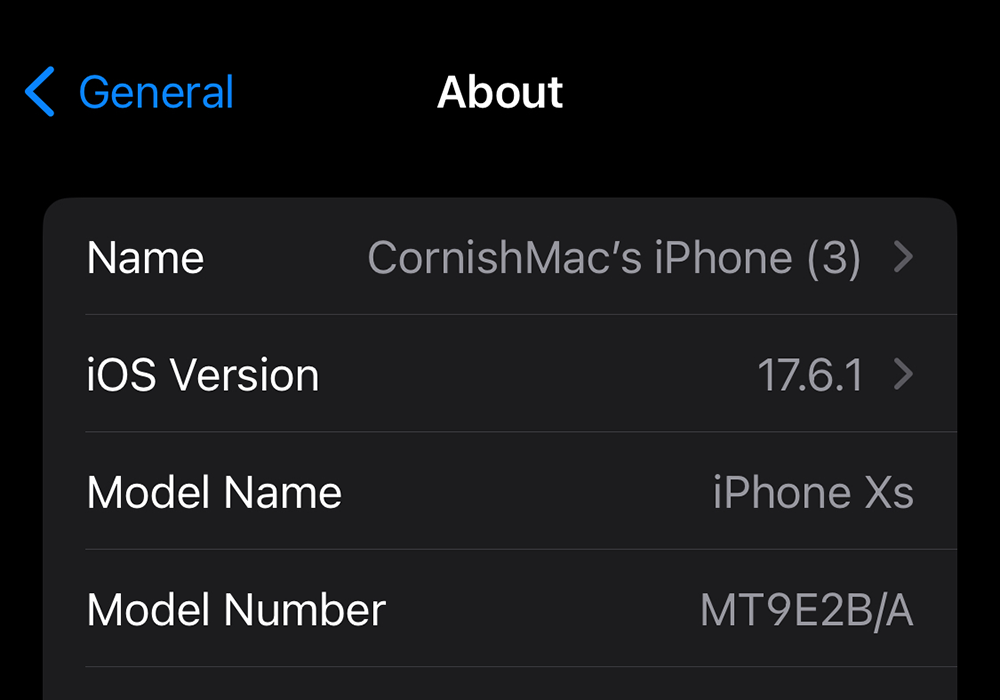
Go to Settings > General > About. To the right of Model Number, you’ll find the part number. To find the model number, tap the part number. Some iPhones will show the Model Name above the Model Number. As pictured here.
For iPhone 7 or earlier simply look on the back of your iPhone.
What Apple iOS am I Running?
Go to Settings > General > About. The iOS your iPhone is running is shown on the second line “iOS Version”. Full iOS details can be seen by tapping on the Right Arrow.
What if my iPhone is Dead or the Screen Broken?
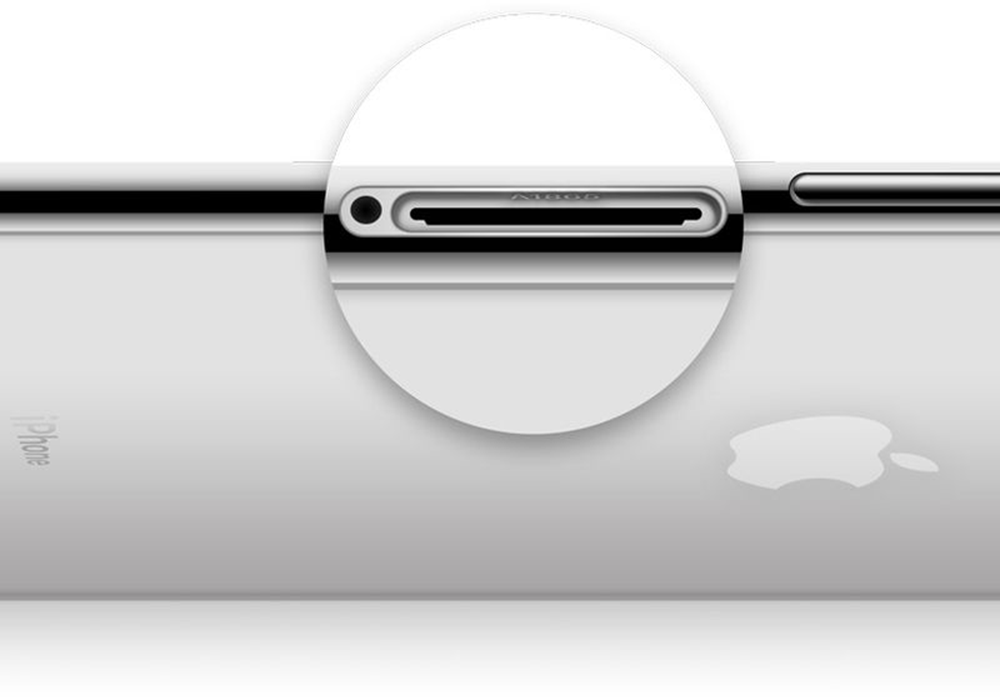
OK this could be the problem you have, so you can’t use the iPhone to find your iPhone details. Not to worry, if you have a iPhone 8 or later with a SIM tray in the side of your iPhone, remove the SIM tray and you will be able to see your iPhone details on the top side i.e. the display side. Note: You may need a magnifying glass and to shine a light on the area to see the details properly.
How to get your iPhone fixed
Contact us by Telephone or e-mail, today to schedule your iPhone’s repair. Please read information below to be ready with information about your iPhone, so we can best advise you on a solution for your faulty device.
Telephone 01736 806120
Useful links for finding information about your iPhone Model

EveryMac
Mac & Apple Devices - EveryMac.com's Ultimate Mac Lookup
Apple Support
Find your Mac model name and serial number

Credit for the Mockup file used to create featured images on this page to: Designed by FREEPIK